
The Support tab shows each ticket’s details, its current status, and the conversation with Autobooks Support, so you don’t need to search your email for updates.
All Autobooks Hub users can submit and view their own tickets. FI Hub Admins can also see tickets opened by colleagues at their financial institution.
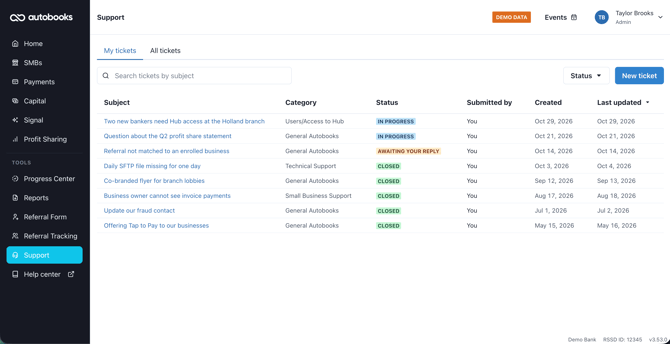
What you’ll see in the Support tab
What you see depends on your Hub role:
| Your role | What you’ll see | Can you reply? |
|---|---|---|
| FI Hub Admin | Two tabs: My tickets and All tickets. You can open and read your colleagues’ tickets. | For your own tickets only |
| Front Line Banker or Read Only | My tickets only | For your own tickets only |
My tickets shows the tickets you've submitted. It can also show a colleague’s ticket if you were included on it (for example if you were copied on an email to Autobooks Support).
All tickets (FI Hub Admins only) shows tickets opened by current Hub users at your financial institution. Tickets from users who have been removed from the Hub won’t appear.
What type of tickets appear
Your Support tab shows tickets you started, either by:
- Submitting a ticket within the Hub, OR
- Emailing Autobooks Support (FISupport@autobooks.co)
Tickets that Autobooks Support opens on your behalf, such as after a phone call, won’t appear in the Hub.
Ticket statuses
Each ticket shows one of three statuses:
| Status | What it means |
|---|---|
| In progress | Autobooks Support is working on your ticket. |
| Awaiting your reply | Support has responded and may need more information from you. |
| Closed | Your ticket has been resolved. |
If you reply to a Closed ticket in the Hub, it reopens and goes back to In progress.
Submitting a new ticket
- Click Support in the Hub’s main navigation.
- Click New ticket in the upper right corner of the Support page.
- Choose a category from the dropdown:
- General Autobooks: general questions about Autobooks
- Small Business Support: questions about a small business customer, such as application status, closing an account, login and access, or held payments
- Technical Support: integration and technical issues
- Users/Access to Hub: adding users, removing users, or changing Hub access
- Enter a subject and description of your issue.
- Attach screenshots if they’ll help Autobooks Support understand the issue (optional).
- Click Submit ticket.
A ticket summary will appear once your ticket has been submitted.
Attaching screenshots
- Use PNG or JPG files, up to 10 MB each.
- You can attach up to 5 files per message and 50 per ticket.
- Screenshots go directly to the Autobooks Support team. They won’t be shown on the ticket page after you send them.
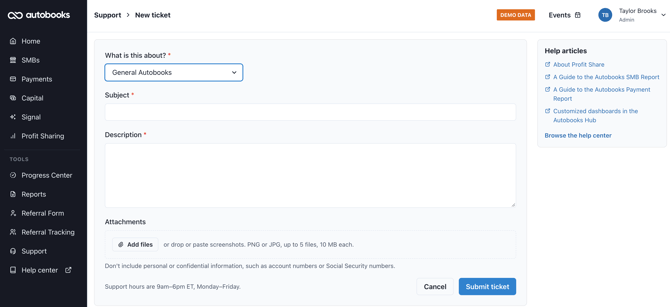
Find answers before you submit
As you fill out the form, a side panel suggests Partner Success Center articles for the category you chose. You might find your answer there without having to wait for a reply. Articles open in a new tab, so you won’t lose what you’ve already typed.
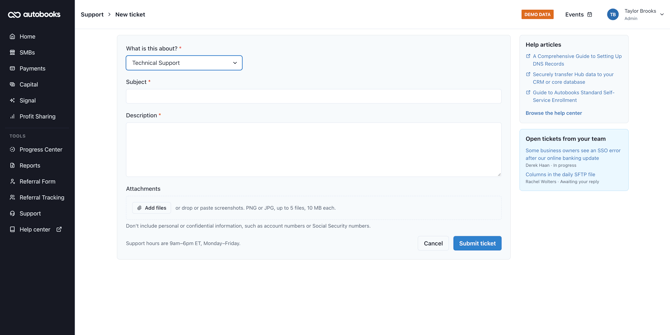
Check for open tickets from your team (FI Hub Admins only)
If someone at your financial institution already has an open ticket in the category you chose, the side panel will list it. This helps you avoid sending in the same issue twice.
- Up to 5 open tickets are listed, with the most recently updated first. Each one shows who submitted it and its status. Your own tickets are labeled You.
- Click a ticket to open it in a new tab.
- Click View all to see all open tickets for your financial institution.
If your issue is different, you can still submit a new ticket.
Viewing a ticket
From your ticket list, click ticket subject line to open it. The ticket page shows:
- Ticket details: subject, category, who submitted it, the date it was created, and the description
- Activity: status changes, who the ticket is assigned to at Autobooks, and messages between you and Support
- Reply box: for the person who submitted the ticket
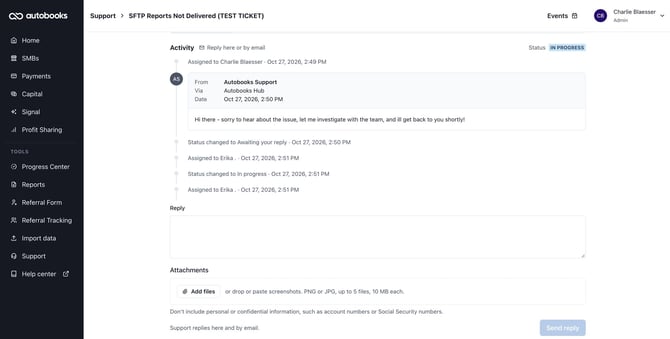
Replying to a ticket
If you submitted the ticket in the Hub, you can reply right from the ticket page. Type your message in the reply box, attach screenshots if needed, and send.
- Only the person who submitted a ticket can reply. Colleagues can read it but can’t reply.
- Replies are only available for tickets submitted in the Hub. If you started a ticket by email, keep replying by email. Those replies will still show up in the Hub.
NOTE: When Autobooks Support replies to a ticket you submitted in the Hub, you’ll also get an email from Autobooks Support (noreply@autobooks.co) with a View ticket link. Please reply in the Hub, not to the email. That mailbox isn’t monitored.